This article is currently an experimental machine translation and may contain errors. If anything is unclear, please refer to the original Chinese version. I am continuously working to improve the translation.
During daily use of Windows, you’re bound to encounter situations where you have to install some sketchy Chinese software(I’m looking at you, Tencent](https://www.v2ex.com/t/745030)) or rarely used cracked/potentially unsafe software.
Or maybe you need to install a program just once, but it always leaves behind junk files or registry entries even after uninstalling — a nightmare for anyone with a bit of digital OCD.
Unlike modern mobile operating systems, PC operating systems like Windows are more open and flexible, but they lack built-in sandboxing mechanisms. This means software often runs with excessive privileges. For example, malware can easily read your browser cookies and upload them to steal your accounts, or admin-level malware can modify critical system files, etc.
Solutions I’ve Tried
- Using Huorong’s custom protection rules to safeguard important data: Huorong constantly pops up alerts, which often causes applications to freeze — poor user experience. Also, I prefer sticking with Microsoft Defender rather than Huorong.
- Using Kaspersky for virus scanning: It’s great at catching viruses, but useless against “domestic bloatware.” Still doesn’t stop your PC from getting cluttered or your data from being stolen. Plus, Kaspersky seems to have a noticeable performance impact after installation.
- Windows Sandbox (built-in): It’s essentially a lightweight VM, which consumes relatively more system resources. Also, all data is wiped when you close it. Better suited for testing one-off apps or known malware.
So I ended up reinstalling my system, installing only clean, trustworthy software on the host machine. Everything else that I have to use gets thrown into a sandbox. I stick with Microsoft Defender as my main antivirus.
About Sandboxie
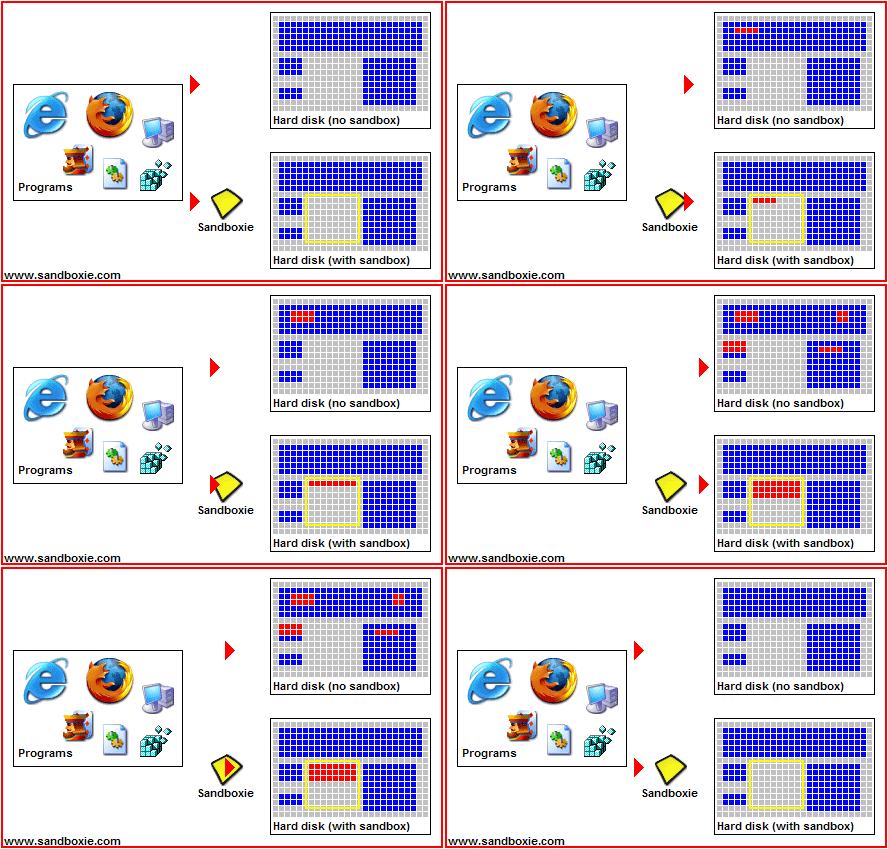
Sandboxie runs your programs in an isolated space which prevents them from making permanent changes to other programs and data in your computer.
 img
img
The red arrows indicate changes flowing from a running program into your computer. The box labeled Hard disk (no sandbox) shows changes by a program running normally. The box labeled Hard disk (with sandbox) shows changes by a program running under Sandboxie. The animation illustrates that Sandboxie is able to intercept the changes and isolate them within a sandbox, depicted as a yellow rectangle. It also illustrates that grouping the changes together makes it easy to delete all of them at once.
The above text is from the official Sandboxie website. Sandboxie works by using API hooking to intercept, redirect, and restrict programs’ access to system files, the registry, etc., while also stripping administrator privileges to limit program behavior.
Although Sandboxie is open-source, the version available on the official website requires a paid certificate to unlock advanced features. Technically, you could compile it from source and force-load an unsigned driver to bypass this — but for basic security and privacy isolation, the free version is more than sufficient (you can manually configure rules to achieve data protection without relying on the pre-built “Data Protection” sandbox templates).
Configuration
First, download and install Sandboxie-Plus from the official website. Launch the app, go to the menu, select Create New Sandbox, and create a Security Hardened Sandbox.
 Create Sandbox
Then go into the sandbox’s advanced settings.
To prevent potential sandbox escape, it’s recommended to enable
Revoke Administrator and Power Users group privileges. Settings
If the program doesn’t need internet access, block all network access under the Network Restrictions tab.
File Privacy Protection: As shown below, set folders containing your personal data (e.g. Documents) to
Write Only (inside sandbox).My PC only has a C: drive, and all my files are in Documents. If you store personal files elsewhere, make sure to add those paths too.
With this setting enabled, programs can only read files they themselves have written — they can’t see your existing personal files.
 Settings
After setup, you can install software inside the sandbox by dragging the installer into it, or using the right-click context menu option “Run in Sandbox.”
Note: Some apps may have compatibility issues when running inside a sandbox — troubleshooting may be needed. For example, installing QQ in Sandboxie requires specific steps.
Summary
With Sandboxie, you can install and run untrusted programs in isolation, keeping your system clean, protecting personal files, and reducing security risks. I’ve covered the most essential settings for isolation and privacy protection here. The truth is, the free version of Sandboxie is already extremely powerful — almost gives me another reason to keep using Windows. There are many more advanced features to explore, so feel free to dive in!
This article is licensed under the CC BY-NC-SA 4.0 license.
Author: lyc8503, Article link: https://blog.lyc8503.net/en/post/windows-sandboxie/
If this article was helpful or interesting to you, consider buy me a coffee¬_¬
Feel free to comment in English below o/