This article is currently an experimental machine translation and may contain errors. If anything is unclear, please refer to the original Chinese version. I am continuously working to improve the translation.
Let me recommend a powerful tool called PowerToys.
PowerToys is a suite of utilities maintained by Microsoft and the open-source community.
It includes features such as Explorer previews for Markdown, PDF, and SVG files, screen color picker, PowerToys Run (quick launcher), regex-based file renaming, keyboard shortcut remapping, image resizing, quick mouse finder, and keeping your system awake—all incredibly useful tools.
You can search for PowerToys directly in the Microsoft Store to download and install it with one click.
There’s also an executable installer available on GitHub.
Below are the features quoted from the official Microsoft documentation:
The currently available utilities include:
Always on Top
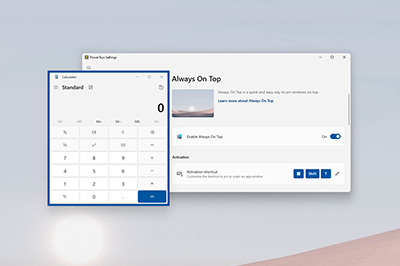
Always on Top lets you pin any window to the front of all other windows using a simple keyboard shortcut (⊞ Win+Ctrl+T).
PowerToys Awake
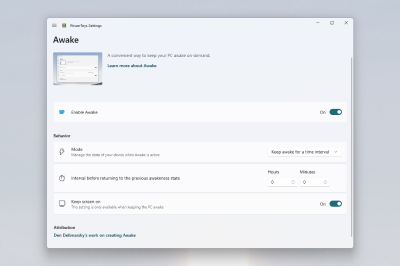
PowerToys Awake is designed to keep your computer awake without adjusting power or sleep settings. This is especially useful during long-running tasks, ensuring your PC stays on and the screen doesn’t turn off.
Color Picker
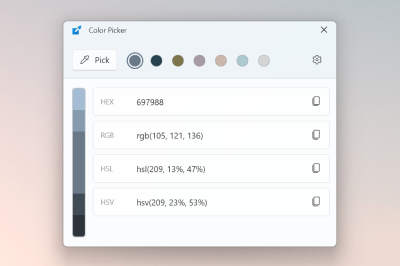
ColorPicker is a system-wide color picker activated with Win+Shift+C. Pick colors from any running application—the selected color is automatically copied to your clipboard in your preferred format. The tool also includes an editor with a history of picked colors, fine-tuning options, and multiple copy formats. This code is based on Martin Chrzan’s Color Picker.
FancyZones
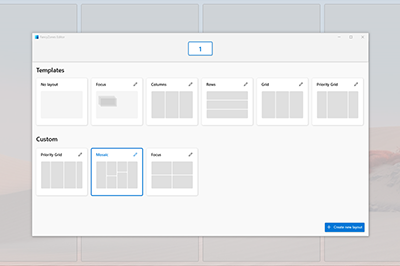
FancyZones is a window manager that helps you create complex window layouts and quickly snap windows into place.
File Explorer add-ons
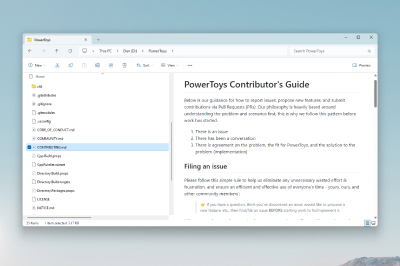
File Explorer add-ons enable the preview pane in File Explorer to show previews for SVG icons (.svg), Markdown (.md), and PDF files. To enable the preview pane, go to the “View” tab in File Explorer and click “Preview Pane”.
Image Resizer
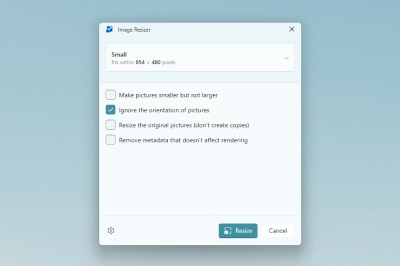
Image Resizer is a Windows Shell extension that lets you quickly resize images. Just right-click one or multiple images in File Explorer to resize them instantly. This code is based on Brice Lambson’s Image Resizer.
Keyboard Manager
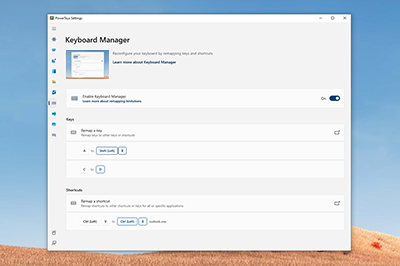
Keyboard Manager allows you to boost productivity by remapping keys and creating custom keyboard shortcuts. This PowerToy requires Windows 10 1903 (build 18362) or later.
Mouse utilities

Mouse utilities enhance your mouse and cursor experience. With Find My Mouse, you can quickly locate your cursor using a spotlight effect. This feature is based on source code developed by Raymond Chen.
PowerRename
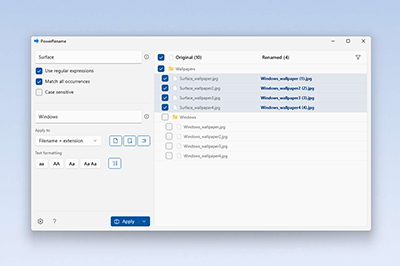
PowerRename enables bulk renaming with search-and-replace functionality for file names. It supports advanced features like regular expressions, filtering by file type, previewing results before applying changes, and undoing operations. This code is based on Chris Davis’s SmartRename.
PowerToys Run
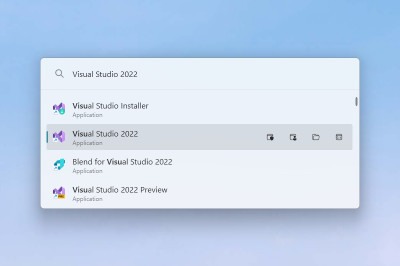
PowerToys Run helps you search and launch apps instantly—just press Alt+Space and start typing. It’s open-source and supports plugins. Window Walker is now included as well. This PowerToy requires Windows 10 1903 (build 18362) or later.
Shortcut Guide
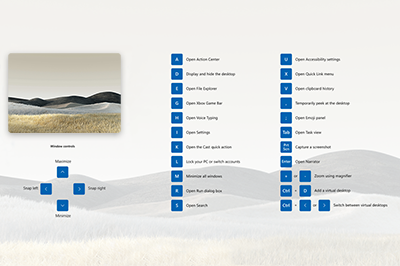
Windows key shortcut guide appears when you press ⊞ Win+Shift+/ (or, as we like to say, ⊞ Win+?), showing available shortcuts based on your current desktop state. You can also configure it to appear when you press and hold the ⊞ Win key.
Video Conference Mute
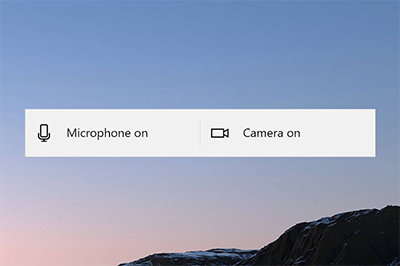 Video Conference Mute screenshot
Video Conference Mute offers a quick way to globally “mute” your microphone and camera using ⊞ Win+Shift+Q during a video call, no matter which app is currently in focus. This requires Windows 10 1903 (build 18362) or later.
This article is licensed under the CC BY-NC-SA 4.0 license.
Author: lyc8503, Article link: https://blog.lyc8503.net/en/post/windows-powertoys/
If this article was helpful or interesting to you, consider buy me a coffee¬_¬
Feel free to comment in English below o/